Lab 2 - Working with Docker Images
In this exercise, you will now see how to work with Docker images. Specifically you will see how to create and then run your own images from Dockerfiles. We will take a sample Spring Boot application and get it into an image so we can run it as a container. To do this we'll create an image which builds the jar file. This is the same application as the container you launched in the previous exercise however we will now start from the project's source code.
Before you Begin
You will need to be logged into a machine that has Docker installed, or you will need to be logged into the Docker playground.
Part 1: Overview of the build process
The source code for our simple Spring Boot application is contained in the following git repository (you can visit this URL in your web browser):
https://bitbucket.org/neuedamats/payment-gateway-demo
To build and run this application on your computer without Docker (do not do this!) the steps would be as follows:
First we would get a copy of the code by using the git clone command:
git clone https://bitbucket.org/neuedamats/payment-gateway-demo
The application code will be placed in a new folder. We would navigate into that folder with:
cd payment-gateway-demo
Inside this folder is a command we can run called mvnw. This can be used to build the jar file. We first need to make sure this command is runnable by entering:
chmod a+x mvnw
Then we can execute the command to build the jar file with
./mvnw package
The jar file will be placed in a sub folder named target and is called payments-0.0.1-SNAPSHOT.jar.
We do not want to do this process directly on the machine we are using, as it will require us to first install and configure the required software, such as Java. Instead we will therefore run the Maven build process inside its own docker container. This approach also means we can guarantee that whenever we build our project, it is in a clean environment and is a fully repeatable exercise.
Part 2: Clone the repository
- We will now clone the repository so that we have the files ready to build. Run the command:
git clone https://bitbucket.org/neuedamats/payment-gateway-demo
Part 3: Build the jar file
- We will use a Docker container to build the Spring application's jar file. The container will be short-lived (sometimes called ephemeral). This container can be defined, created and destroyed with a single command. Run the following command:
docker run -it --rm -v $PWD/payment-gateway-demo:/src -v $HOME/.m2:/root/.m2 -w /src maven:3.9.3-eclipse-temurin-20-alpine mvn package
To understand this command:
docker run -it - run the docker container in interactive mode. Although we don't expect to interact with the container, by using this flag we will see the output, and if the process does prompt the user to enter any information, then we will get the chance to do this.
--rm - remove the docker container when it exits.
-v $PWD/paymentgateway-standalone:/src - this will map the project folder on the server to a folder called src in the container. So the source code that we have just cloned is now available inside the container.
-v $HOME/.m2:/root/.m2 - The Maven build process downloads a lot of files - we are mapping the folder that these files are downloaded to on the local machine to the equivalent folder inside the image. This means that future builds will be faster as the files will already have been downloaded.
-w /src - This sets the working folder inside the containr to the src folder (where we mapped the source code)
maven:3.9.3-eclipse-temurin-20-alpine - this is the name of the image that should be used to build the container. It will be obtained from dockerhub if we don't already have a copy locally. Note this a particular version of the maven image, specified by the tag (3.9.3-eclipse-temurin-20-alpine) which is a lightweight image with all the required software pre-installed and configured to build our code.
mvn package - finally this is the command required to build the jar file.
Because we have mapped the current folder to the working folder in the container, when the jar file is built it will be available in the target subfolder on our server.
Part 4 Create a Dockerfile to run the application
Now that we have built the jar file, we can create a Dockerfile to define the image that will actually execute our application. You would normally need to build this manually, however a Dockerfile has been provided for you in the repo.
- Run the following command to view the provided Dockerfile.
cat Dockerfile
This file contains the following lines:
| Content | Description |
|---|---|
FROM amazoncorretto:8 | This is the parent image - a linux distribution that contains a Java Virtual Machine provided by Amazon (Java 8) |
ADD target/payments-0.0.1-SNAPSHOT.jar webapp.jar | This will copy the JAR file we created into the image |
EXPOSE 8080 | This specifies which port will be exposed by default (optional) |
CMD ["java","-jar","webapp.jar"] | This is the command that is executed when the container launches |
Part 5 Build the Image and Run the Container
- To build the image, we can use docker build. Remember we must specify a tag and then also the location of the Dockerfile. Run the following command (take care to include the final period):
docker build -t payments .
This will download the parent image that we specified at the top of the Dockerfile, the along with all of its layers. Once that is complete it will then build the image for you.
The output will look something like the below:
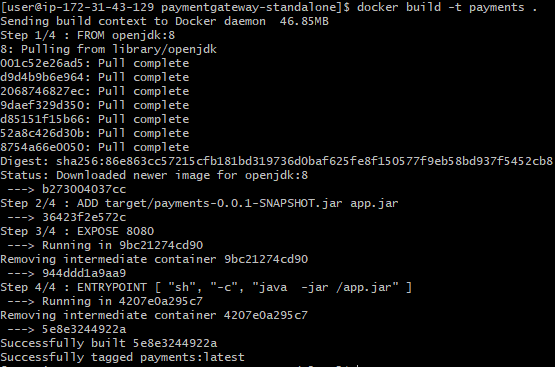
- Now the image is built, we can test it by running it as a container. To run it we can use an almost identical command to the one we used in Module 2. Start the container with the following:
docker run -p 8080:8080 -d payments
In this command the -p means "run the container exposing port 8080, and map that to port 8080 on the host machine".
The terminal will respond with the id of the container. Make a note of the first 3 digits.
- You can view the logs from the container by running the command
docker logs [3 digits]
- After a short while the application should be running. To test it in the browser, now visit the following URL:
http://[servername or IP address]:8080/api/country
You can also visit the root url for the application in your browser to view the API documentation.
http://[servername or IP address]:8080
- Finally, terminate and destroy your container using
docker rm -f [3 digits].
Review
Congratulations. You have successfully created 2 Dockerfiles. We used the first to create a docker image that when run as a container would build a jar file. We launched that container and extracted the jar file. We then created a second docker image to run the jar file as an application. You then launched that image as a container, and was able to view it running via a Web Browser.
You may be wondering why we didn't push our image to the registry. It can be done with docker push, but we would need the relevant permissions to do that.