Branching and Merging
The Aims
The objective for this exercise is to become familiar with branching and merging operations with the git command line tool.
Steps
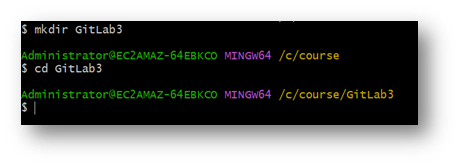
- Create a new folder called GitLab3 and navigate into that folder.
-
Make the folder into a Git repository with
git init -
Create some simple text files (e.g. file1.txt, file2.txt, file3.txt) and commit them to the repository (on the master branch).
e.g. use notepad or VsCode to create your txt files, then run these commands:
git status
git add .
git status
git commit -m "first commit"
git status
- Create a new branch named req1, representing changes you need to make to address some imaginary requirements (req1)
git checkout -b req1
git status
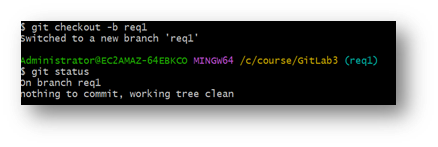
Now you should be on the req1 branch, though the files should currently be the same as they were on the master branch.
- Make some changes to some of the files and commit these changes. These changes will be added to the req1 branch
e.g. using notepad or VsCode make some changes to your files, then run these commands:
git add .
git commit -m "changes required for req1"
git status
- Revert to the master branch, and verify the files in your working directory have reverted back to the original versions prior to your most recent changes:
List the names of all branches with
git branch
Switch to the master branch with either
git switch masterorgit checkout master
- Now make some other changes to the files and commit these changes while in the Master branch. Ensure that you change at least 1 of the same files as you changed in the req1 branch, with a different change.
e.g. using notepad or VsCode make some changes to your files, then run these commands:
git add .
git commit -m "changes on master branch"
git status
- Now try switching back and forth between the branches with the files open in VsCode. Notice how the contents of the files changes to the current branch.
git checkout master
take a look at your files
git checkout req1
take a look at your files again
- Now try merging the req1 branch into the master branch
git checkout master
git merge req1
- If you get any "CONFLICT" messages then open the files in a text editor and fix them. To do this, look for any lines containing:
'<<<<<<<<<<<<<<', '===============' or '>>>>>>>>>>>>'.
Fix these lines so they contain the content you want.
For example:
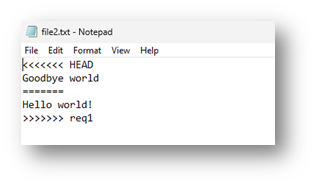
This file contains a change to the same line – in the master branch the line was “Goodbye world”, and in the req1 branch it is “Hello World!”. After editing this file so that the version that was in req1 is preserved, the file will look like this:
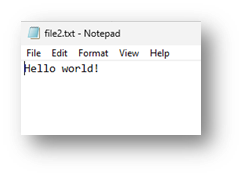
- Once you're happy with the contents of your files you need to add and commit them before the merge is complete.
git add .
git commit -m "Merged req1 branch into master"
git status
- Notice how all the commits are all now on the master branch, including those made on the req1 branch.
git log