Cloning a repo
The Aims
The objective for this exercise is to learn how to clone a repo, and keep the local and remote repos in sync.
Steps
-
If you do not already have a personal GitHub account, create one now. You must use a PERSONAL email address - do not use a firm email address. For more guidance see the separate info sheet on creating a Github account.
-
Log onto Github
-
Create a new repo in Github – go to the Repositories tab and click on the New button.
-
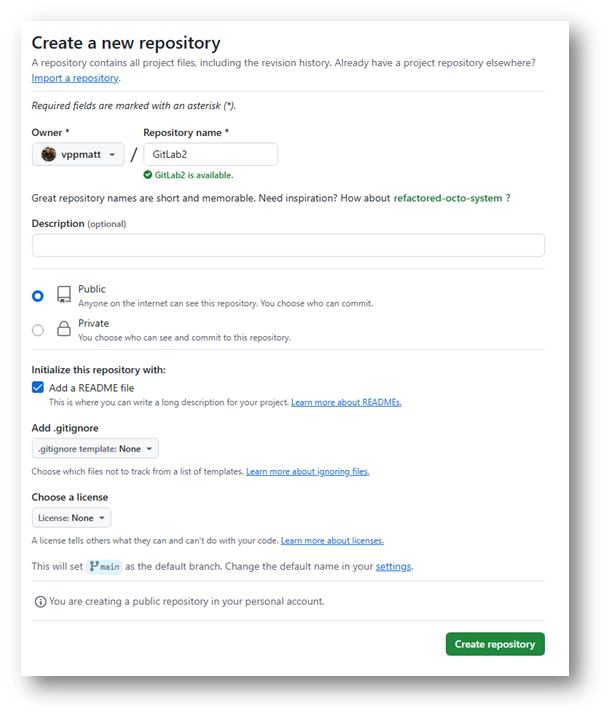
Give the repository a name, such as GitLab2. Keep the repository as public. Tick the box to add a Readme file, then click on the Create Repository button.
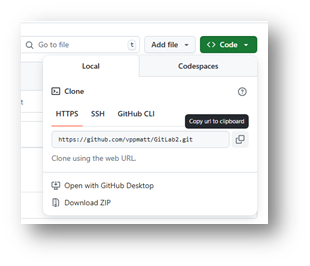
- Click on the green Code button, then in the drop down click on the copy button to copy the URL of the repo to your clipboard.
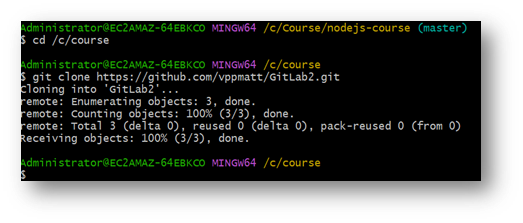
- In the git bash shell, navigate to the C:\Course folder, then run the command
git clone <<url>>
-
View the folder that has been created in Windows explorer – note that there should be a file present (README.md) and a sub folder called .git
-
Using notepad, Edit the file called README.md – enter any content you like into this file and save it.
-
Run the command
git statusto see what the current status of your workspace is – make sure you navigate into the project folder first.
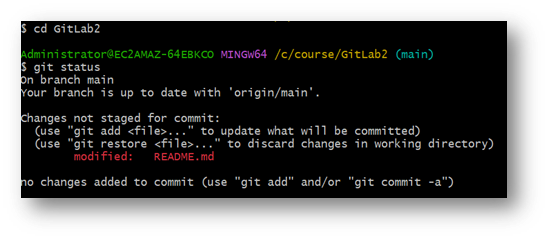
Note that the file you edited is in your workspace but is not yet in the staging area.
-
Run the command
git add .to add the file into the staging area. -
Run the command
git statusto see what the current status of your project is.
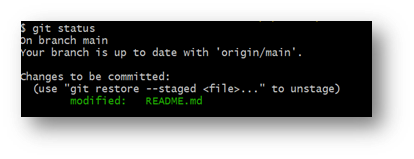
Note that the file you added now appears in green. The updated file is in both your workspace and the staging area, and is the same file in both places.
- Commit the file to your local repo with
git commit -m "update to readme"
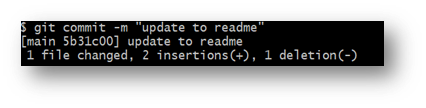
- Run the command
git statusto see what the current status of your project is.
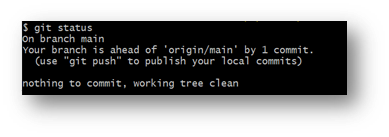
- Run the command
git pushto synchronize the local changes with the remote repo
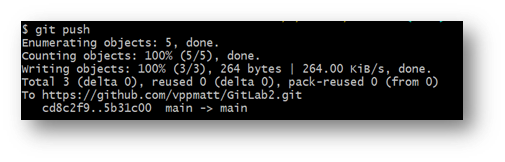
-
Open the file on the Github website – check that the local changes appear there.
-
Edit the file on the Github website – there is a pencil icon at the top right of the file. When you have made some changes click on the green “Commit changes” button. When you click on this you’ll get a popup where you can enter a commit message. Just click on the green “Commit Changes” button again to save the change. Note that you wouldn’t normally edit a file on Github – we are doing this so that we can see how to pull remote changes that are not present in our local repo.
-
Run
git pullto update the local repo with the remote changes.
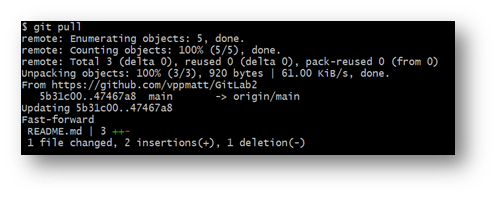
Open the file in Notepad and check that the changes you made on the server are present locally.
- Run the command
git logto see a list of the commits that were made both on the local and remote repos.