Committing Changes
The Aims
The objective for this exercise is to become familiar with basic operations using the git command line tool.
Steps
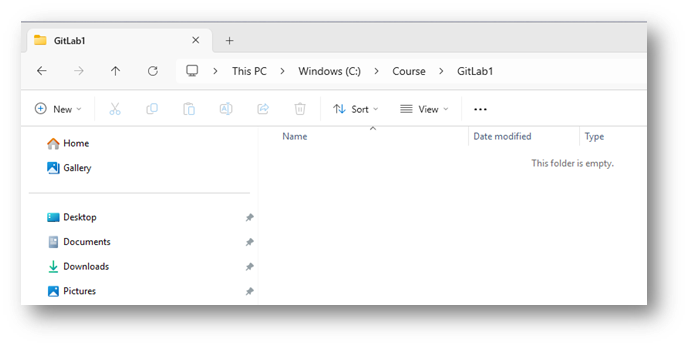
- Create a new folder, called “GitLab1” within the C:\course folder
-
Open the Git Bash application.
-
Configure Git by running the following 3 commands using your own name and personal email address
git config --global user.name "Jo Shmo"
git config --global user.email jo.shmo@neueda.com
git config --global core.editor notepad
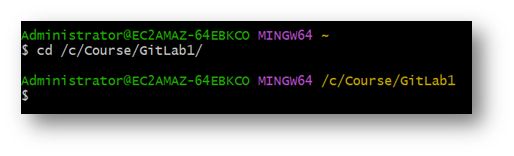
- Navigate to the GitLab1 folder – note that to specify the drive letter can use the folder structure in the format
cd /<<driveletter>>/<<folder>>
- Run the command
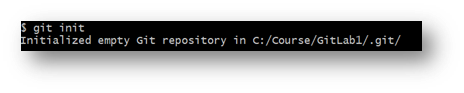
git initto configure your folder as a Git project
-
Using notepad, create a new file called “Readme.txt” – enter any content you like into this file and save it.
-
Run the command
git statusto see what the current status of your workspace is.
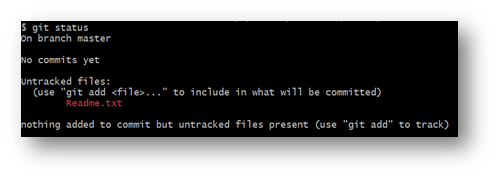
Note that the file you added is untracked and appears in red – this file is in your workspace but is not yet in the staging area.
-
Run the command
git add Readme.txtto add the file into the staging area. -
Run the command
git statusto see what the current status of your project is.
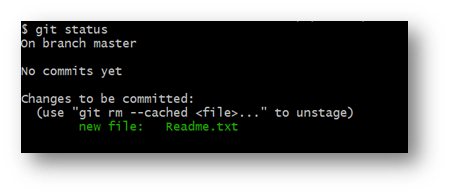
Note that the file you added now appears in green. This file is in both your workspace and the staging area, and is the same file in both places.
- Make a small change to the file contents and save it. Then run
git statusagain.
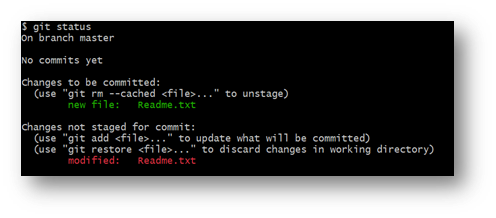
Note that the file you added now appears in green – this is the file in your staging area. It is also shown in red as the file in your workspace is different to the file in your staging area
- Run the command
git diffto see what lines have changed.
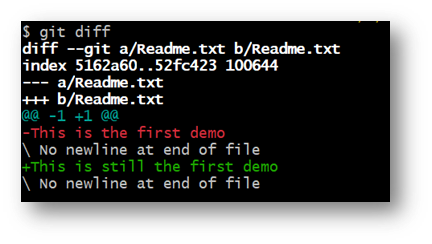
In this example, the version in the staging area has the content “This is the first demo” and the version in the workspace has the content “This is still the first demo”.
-
Run the command
git add .to get the change into the staging area – note that the period at the end of this command means that all files in the workspace should be added. -
Run the command
git statusto see what the current status of your project is. -
Run the command
git commit -m "first commit"to move the file from the staging area into the local repo
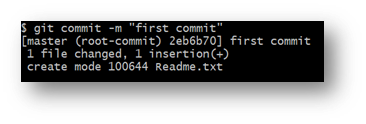
- Run the command
git statusto see what the current status of your project is.
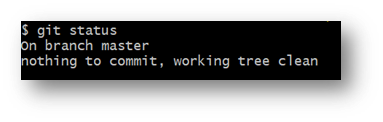
- Run the command
git logto get a list of the commits on this branch
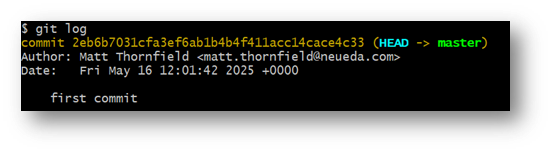
- Commit some more changes to get comfortable with the operations:
- Add at least one more file to the project
- Make changes to each file – use the
addandcommitcommands to move the files to the staging area and the repo - Use the
statuscommand to view the status of the project - Use the
logcommand to view the commits
- Once you have added a few commits, use the command
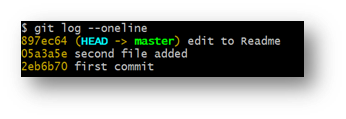
git log --onelineto view a shorter summary of the commits