Teamwork with Git
The Aims
The objective of this lab is to become familiar with using git and a remote repository system. The lab covers:
- Creating feature branches for new work
- Creating a pull requests to merge work into “upstream” branches
- If there are merge conflicts you will need to merge manually e.g. using the gitbash command line
Note
This lab requires you to work in a team of 3 or 4 people. One of you will act as the senior developer – you will create the main repository, and approve the pull requests. The other participants will act as developers, making changes and creating pull requests. Before starting decide who will take which role.
The person undertaking the steps should share their screen with the other participants so that you can all see and understand what is happening at each stage of the process.
Steps
The senior developer should:
-
Create a new repository on the Github website. Call the repository GitLab4. Make sure it is a public repository.
-
Clone the repository, add in a file, and then commit and push the change.
-
Check that the repository has the file you added.
-
Public repositories can be viewed by anyone but to make changes you must add the other members of your team as collaborators. To do this (on the Github website):
- Click on the settings icon at the top of the screen

- Choose Collaborators from the menu at the left hand side

- Click on add people

-
Enter the github username or email address of each of your team members
-
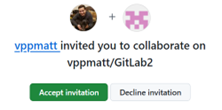
Each user you invited should accept the invitation by logging into their Github account and then clicking on the notifications icon (top right)
They can then open the invitation and click on the Accept button.
The developers should each:
-
Clone the repository to their own machine using
git clone ... -
Make a change to the file in the repo, with any simple text change e.g. add a message in it with your name. This team member should now make this change available to the rest of the team with “add, commit, push” to get this change to the remote repository.
-
Verify that you can all see the change in Github, look under the source and commits tabs to see the change.
-
Each team member should now run
git pullso that they retrieve this new change from the Github repository. -
Now in turn Each team member should now make their own unique change or changes to the README file.
Add,commitandpushyour change so that it’s available to the rest of your team. AND each other team member should usegit pullto bring that change to their local copy of the repository. -
Repeat step 9 until a change from every team member has been added to the file.
In the above steps we have see every team member add a change TO THE SAME BRANCH of a repository. While this is a useful first step in using remote repositories, in production scenarios we would use new branches for different changes (we would not all commit our changes to the “master” branch).
Optional – Advanced Steps – Using branches
IF your team understands the above steps, then try repeating them, however in this case when each team member makes their change in Step 6. They should this time create a new branch first E.g.
- Create a new branch for your particular change:
git checkout -b teammember1_branch
-
make your change to the README file
-
Add your changes to the repository
git add .
- Commit your changes to the repository
git commit -m "Adding a test change to README"
- Push your changes to Github BUT now going to the new branch
git push -u origin teammember1_branch
In the commands above, we have created a new branch, made a change on it and pushed it to Github so that new branch is available to the team.
Each time a team member completes the steps above, you should then bring these changes from the new branch over to the master branch. Do this by creating a "Pull Request" on the Github web screen. This pull request will be from "teammember1_branch" to "master" - the branch the changes are coming from and the branch changes are going to.
When the pull request has been created, you should then "Merge" the pull request to complete the process.
When the pull request has been "Merged" then every team member should run git pull on their own machine to take these changes down to their local copy of the master branch.
The next team member can then repeat the process of creating a branch, committing changes to it, pushing it to Github AND merging it by creating a Pull Request.
The above is a more realistic workflow for Teamwork with Git.