Set up a Jira Board
The Aims
In this exercise, you will set up a Jira Board ready to manage the tasks for your project
Creating a new Jira Board
Important - these actions should be undertaken by 1 person in each group
- Visit this link to create a new Jira account:
https://www.atlassian.com/try/cloud/signup?bundle=jira-software&edition=free&skipBundles=true
Enter a personal email address to sign up.

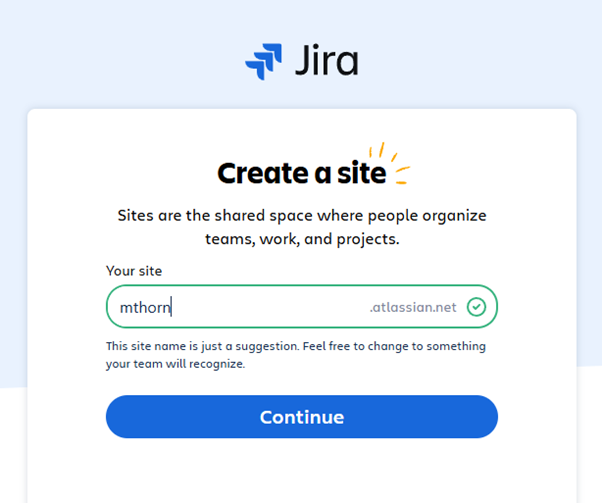
- Create a site for your team - use a team name on this screen. Your team name may not be available, so pick anythign that you like.
- On the What kind of work do you do? page, select Software development

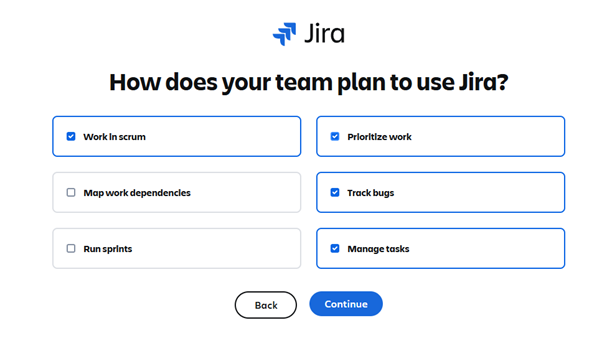
- On the How do you plan to use Jira page, select any options that make sense to you.
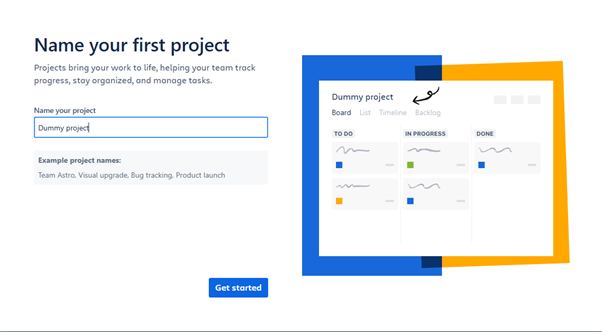
- On the Name your first project page, enter a name for your team's project
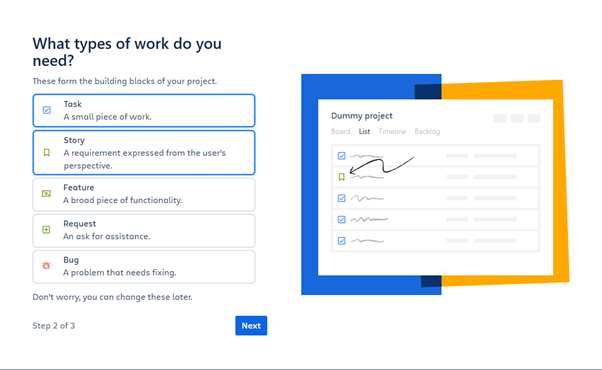
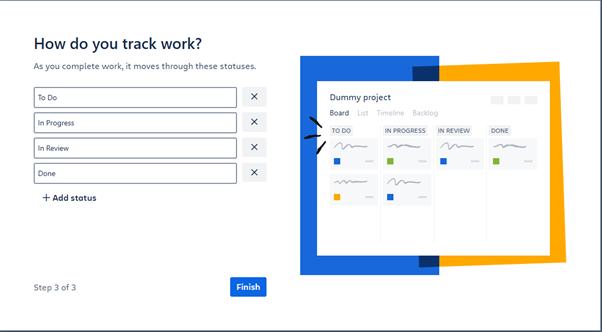
- On the next two screens, accept the default options presented
Invite your team members
-
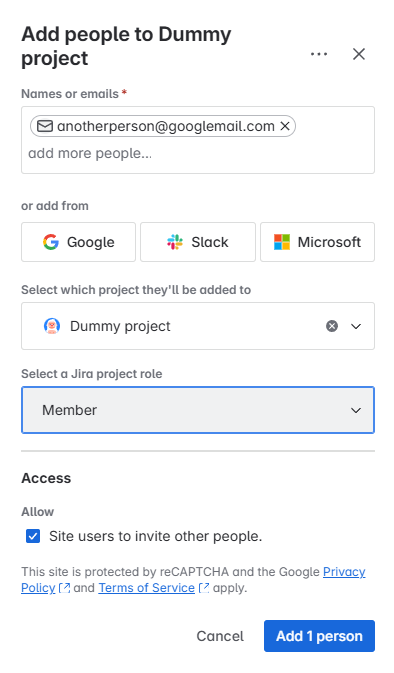
Once you have set up a Jira board, click on the teams link on the left menu, then click on the add people button.
-
Enter the personal email addresses of the other members of the team, to invite them to join your board.
Start using Jira
Once the team members are all connected to a Jira board:
-
Try creating a blacklog of tasks in the project board. Think about what you will need to do!
-
Assign tasks to team members and set deadlines
You will use this board as you work through your project. The requiremetns will become clearer soon, so today you can create dummy tasks which can be marked complete when you know what the real tasks will be.